
How to Pair Any Two Bluetooth, AirPlay, or Wired Speakers in Stereo on Mac
Create a true Left and Right stereo pair from any two AirPlay, Bluetooth, USB-C, 3.5 mm, or built-in Mac speakers on macOS without virtual drivers.
macOS does not let you pair two arbitrary speakers as a true Left and Right stereo stage. AirPlay multi-room sends the same mixed audio to both speakers, and Audio MIDI Setup Multi-Output Devices duplicate stereo instead of splitting channels.
Consort 1.9.4 removes that restriction on Apple Silicon Macs running macOS 15 Sequoia or macOS 26 Tahoe, with zero virtual drivers.
Mix Any Two Outputs Freely
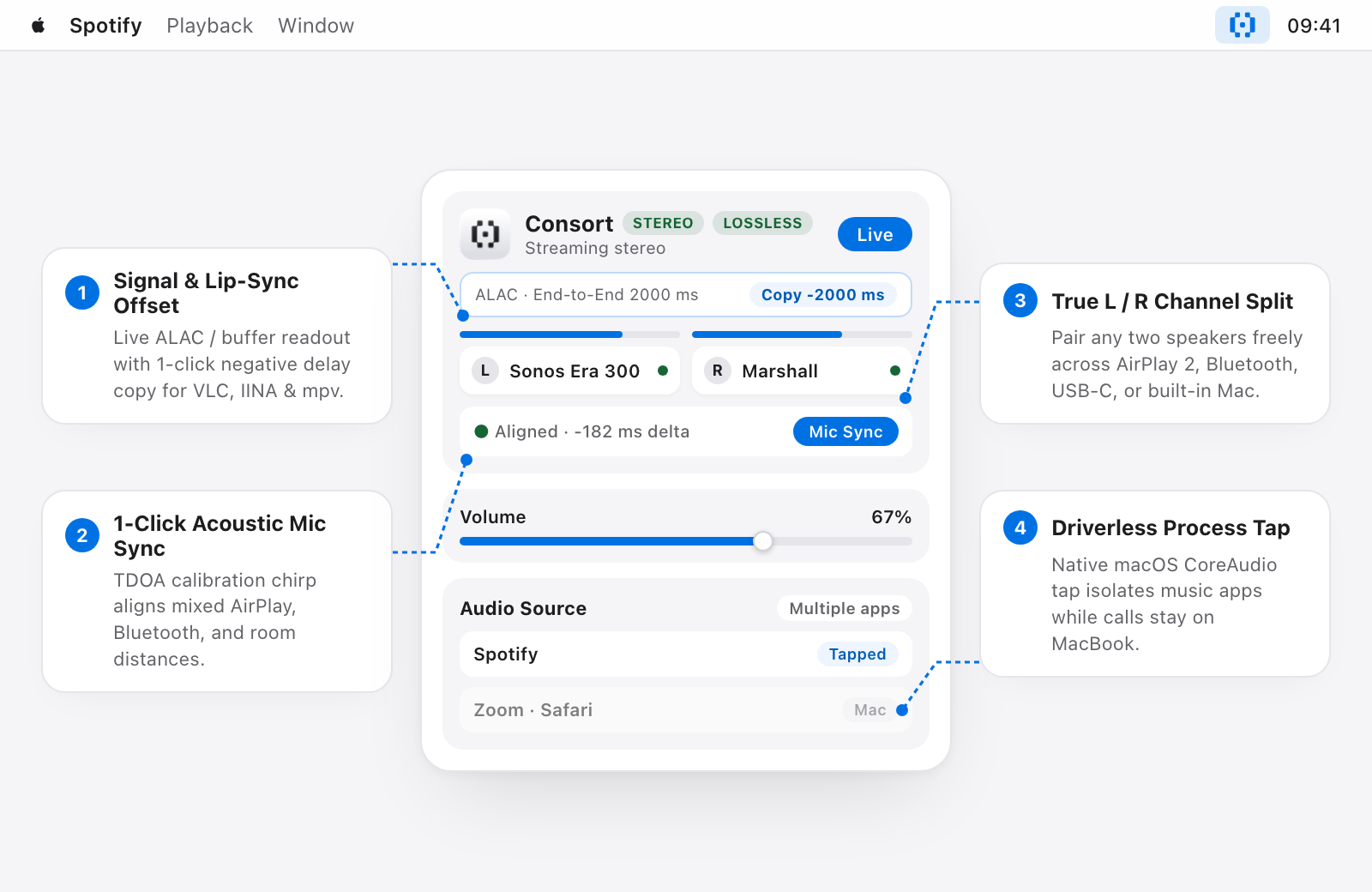
Consort splits Left (L) and Right (R) channels in real time across any combination of hardware:
- Two AirPlay 2 speakers: Pair mixed brands such as Sonos, Bang & Olufsen, Bowers & Wilkins, KEF, or Devialet in lossless ALAC.
- Two Bluetooth speakers: Connect both speakers in macOS Bluetooth settings and assign one to Left and one to Right.
- AirPlay + Bluetooth or Wired: Pair an AirPlay speaker on one side with a Bluetooth speaker, USB-C DAC, or 3.5 mm speaker on the other.
- Mac + External Speaker: Use your built-in MacBook or Studio Display speakers as one channel and a wireless speaker as the other.
Step-by-Step Stereo Setup
- Connect your speakers: Make sure Bluetooth or wired speakers are connected in macOS, and AirPlay 2 speakers are on the same Wi-Fi network.
- Select Left and Right: Open Consort from the menu bar and assign one output to Left and the second to Right.
- Choose your audio source: Route system-wide audio or isolate specific apps (Spotify, Apple Music, Qobuz, VLC) using Consort’s driverless CoreAudio Process Tap.
- Run 1-Click Mic Sync: If you are mixing different speaker models or asymmetric distances, click Run Acoustic Sync to align arrival times down to the millisecond via your Mac’s microphone (see calibration details).
Saved Profiles and Trial
Consort automatically remembers your volume, equal-power -3.01 dB balance, and delay calibration for each speaker pair. You can test your exact room and speaker setup with a 7 active-day trial (only days you use Consort count).
Next Guides
View all →Fixing Wireless Speaker Delay and Video Lip-Sync on macOS
Eliminate echo between mixed speakers with 1-click mic sync, and fix audio-to-video lip-sync drift in VLC, IINA, and mpv using Consort's negative offset.
Why macOS Plays Double Mono on Two Speakers (And How to Get True Stereo)
Why macOS multi-room AirPlay and Multi-Output devices collapse to double mono, and how Consort splits Left and Right channels across AirPlay, Bluetooth, wired, and Mac speakers.