
Fixing Wireless Speaker Delay and Video Lip-Sync on macOS
Eliminate echo between mixed speakers with 1-click mic sync, and fix audio-to-video lip-sync drift in VLC, IINA, and mpv using Consort's negative offset.
When you stream Mac audio to wireless speakers, two distinct timing issues can appear: echo between the two speakers and video lip-sync lag where dialogue arrives after an actor’s lips move.
Each issue has a different cause and a clean solution in Consort 1.9.4.
1. Fix Echo Between Two Speakers
Echo or phase smearing happens when your Left and Right speakers have different internal DSP buffers, wireless protocols, or distances to your ears.
- Open Consort’s Speakers & Sync pane and click Run Acoustic Sync.
- Consort plays a brief TDOA calibration chirp, listens through your Mac’s microphone, and aligns both channels down to the millisecond. (See how acoustic mic sync and the -3 dB pan law work.)
2. Fix Video Lip-Sync with Negative Audio Offset
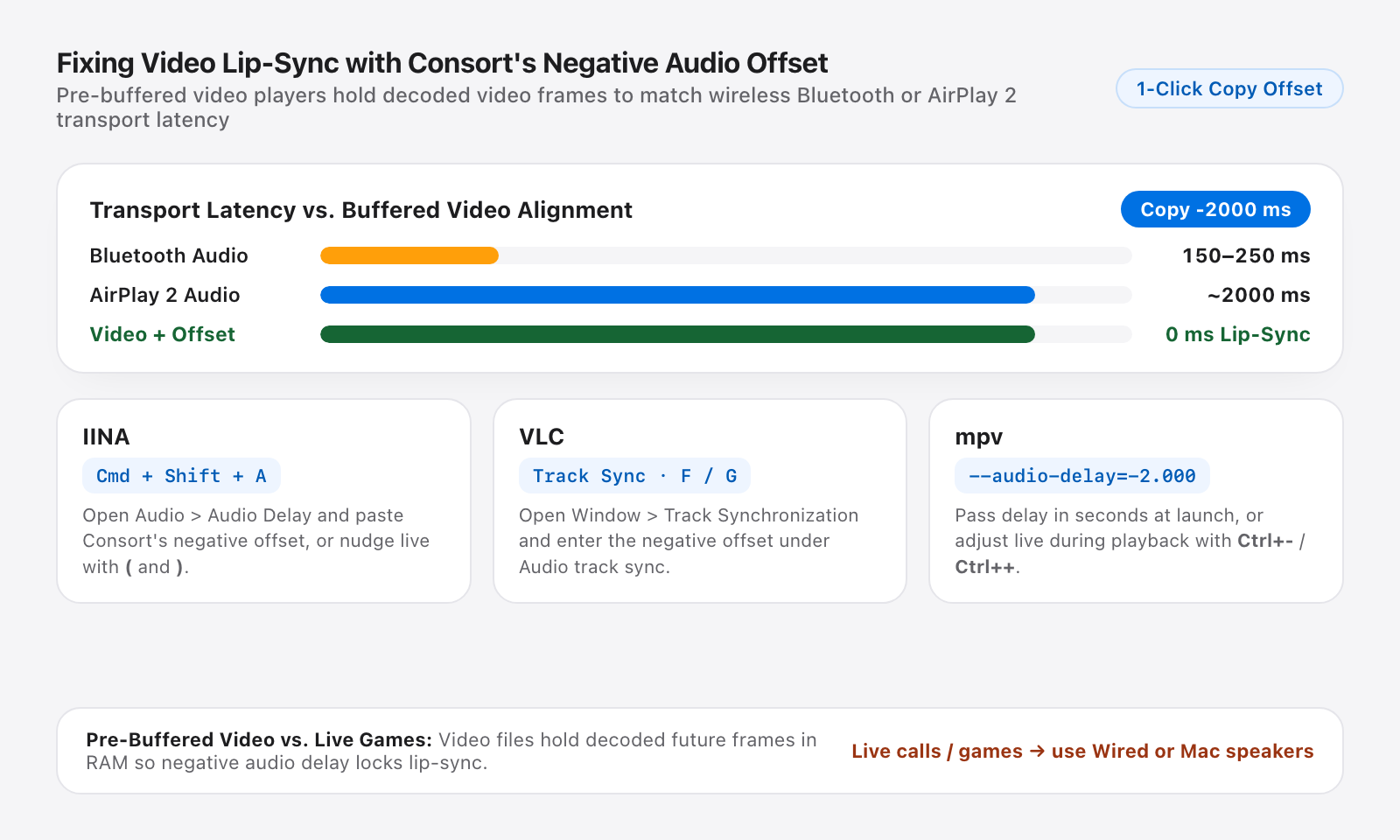
Wireless transports intentionally buffer audio for stability: roughly 150 ms to 250 ms over Bluetooth and around 2000 ms over AirPlay 2.
Because Consort knows the exact buffering and calibrated delay of your active pair, it displays your end-to-end latency readout and gives you a 1-click copyable negative offset (for example, -214 ms or -2000 ms).
Apply that negative offset directly in buffered macOS video players:
- IINA: Press
Cmd+Shift+A(or open Audio > Audio Delay) and enter the negative offset in seconds or milliseconds, or nudge live with(and). - VLC: Open Window > Track Synchronization and enter the negative value under Audio track synchronization, or press
F/Gduring playback. - mpv: Launch with
--audio-delay=-2.000(in seconds) or adjust live withCtrl+-andCtrl++.
Honest Note: Buffered Video vs. Live Games
Negative audio offsets work in VLC, IINA, and mpv because video files are pre-buffered: the player already has future video frames decoded in memory and simply holds them to match the wireless audio buffer.
Real-time video games and live video calls cannot rewind or predict live inputs. No software on macOS can eliminate the physical AirPlay 2 or Bluetooth transport buffer for live interactive audio. For gaming or FaceTime/Zoom calls, use wired USB-C, 3.5 mm, or built-in Mac speakers.
Next Guides
View all →How to Pair Any Two Bluetooth, AirPlay, or Wired Speakers in Stereo on Mac
Create a true Left and Right stereo pair from any two AirPlay, Bluetooth, USB-C, 3.5 mm, or built-in Mac speakers on macOS without virtual drivers.
Why macOS Plays Double Mono on Two Speakers (And How to Get True Stereo)
Why macOS multi-room AirPlay and Multi-Output devices collapse to double mono, and how Consort splits Left and Right channels across AirPlay, Bluetooth, wired, and Mac speakers.