# Consort · Full Technical Reference & Knowledge Base
> Pair any two AirPlay, Bluetooth, wired, or Mac speakers in true stereo on Mac. 1-click mic sync, lossless AirPlay, per-app audio, zero drivers.
## Quick Facts & Entity Profile
- **Application Name**: Consort
- **Category**: macOS Menu Bar Audio Utility (Multimedia / True Stereo Speaker Pairing)
- **Developer / Publisher**: Gavril&Co (Founder: Nicolas Gavrilenko)
- **Official Website**: https://consortaudio.com/
- **Support Email**: support@consortaudio.com
- **Current Version**: 1.9.5
- **Requirements**: macOS 15 Sequoia or macOS 26 Tahoe on Apple Silicon (M1 or later)
- **Direct Download (.dmg, Sparkle 2 signed & Apple notarized)**: https://downloads.consortaudio.com/consort/Consort-latest.dmg
- **Sparkle 2 Appcast**: https://downloads.consortaudio.com/consort/appcast.xml
- **Pricing**:
- **Free Trial**: 7 active listening days (idle days never count), zero credit card required.
- **Free Discovery Mode**: Unlimited 10-minute listening sessions forever after the trial expires.
- **Solo License**: $29 USD one-time payment for 1 personal Mac (perpetual lifetime right to use the purchased version; includes 1 year of feature updates; optional $15/yr renewal).
- **Household License**: $49 USD one-time payment for up to 5 Macs (perpetual lifetime right to use the purchased version; includes 1 year of feature updates; optional $25/yr renewal).
## Technical Specifications
- **Capture Engine**: Native Apple `AudioHardwareCreateProcessTap` (`CATapDescription`) on macOS 15 Sequoia+. Zero third-party kernel extensions (`kext`) and zero files in `/Library/Audio/Plug-Ins/HAL`.
- **AirPlay Transport**: Real-time Apple Lossless (`ALAC`, 16-bit / 44.1 kHz) over RAOP / AirPlay 2.
- **Wired & Built-In Transport**: Direct uncompressed PCM over CoreAudio HAL (USB-C DACs, 3.5 mm, HDMI, MacBook/iMac/Studio Display internal speakers).
- **Bluetooth Transport**: Standard Bluetooth A2DP paired with real-time arrival-time drift compensation.
- **Acoustic Calibration**: TDOA (Time Difference of Arrival) microphone chirp measurement covering `-2500 ms` to `+2500 ms`, plus manual `-150 ms` to `+150 ms` live slider and exact numeric offset saved automatically per Left/Right speaker pair.
- **Stereo Balance & Headroom**: Constant-power `-3.01 dB` pan law with soft-knee limiting and automatic mono fold-down safety when a single speaker temporarily disconnects.
- **Video Player Lip-Sync**: Live End-to-End Delay readout with 1-click negative offset copy (e.g., `-214 ms`) formatted for VLC, IINA, and mpv.
- **Automation**: URL scheme `consort://`, Apple Shortcuts actions, Raycast commands, native F8/F10/F11/F12 keyboard volume control (16-step & 64-step `Shift` quarter-step macOS OSD).
- **Resource Usage**: Less than `0.1%` idle CPU in the menu bar.
## Frequently Asked Questions (FAQ)
1. **Why does macOS play two speakers in double mono?**
macOS only creates a true stereo pair out of two identical Apple HomePods. Consort splits Left and Right channels natively and synchronizes any two speakers, across AirPlay, Bluetooth, wired, and built-in Mac audio.
2. **Can I pair Bluetooth, AirPlay, USB-C, and Mac speakers together?**
Yes. Pair any two speakers regardless of brand or connection, including Sonos with Marshall, two different Bluetooth speakers, a USB-C DAC with an AirPlay speaker, or your MacBook speakers as one side.
3. **How does 1-click Automatic Acoustic Sync work?**
Click Sync in Consort. It plays a brief acoustic chirp through your Left and Right speakers, measures arrival time with your Mac microphone, compensates latency drift (such as Bluetooth vs AirPlay), and saves that offset for the pair.
4. **Do I need virtual audio drivers or kernel extensions?**
No. Consort uses native macOS CoreAudio Process Taps only. Your system output and microphone stay untouched, and moving Consort to Trash uninstalls it completely.
5. **Can I keep video in sync with VLC, IINA, or mpv?**
Yes. Click the codec badge in the Consort popover or open Speakers & Sync in Settings to read your End-to-End Delay in milliseconds and copy the negative audio offset for your video player in one click.
6. **Can I stream just one app while keeping calls on my Mac?**
Yes. Route Spotify, Apple Music, or any chosen app to your stereo speakers while system alerts, notifications, and video calls remain on your Mac or headphones.
7. **What Mac is required, and how does the trial and license work?**
Consort requires Apple Silicon (M1 or newer) running macOS 15 Sequoia or macOS 26 Tahoe. You get 7 active listening days free (idle days never count), followed by unlimited free Discovery Mode (10 min/session) or a one-time Solo ($29, 1 Mac) or Household ($49, up to 5 Macs) license that works for life.
## Technical Guides
### Fixing Wireless Speaker Delay and Video Lip-Sync on macOS
URL: https://consortaudio.com/blog/fix-wireless-speaker-delay-video-lip-sync-macos
Published: 2026-11-15
Author: Nicolas Gavrilenko
When you stream Mac audio to wireless speakers, two distinct timing issues can appear: **echo between the two speakers** and **video lip-sync lag** where dialogue arrives after an actor's lips move.
Each issue has a different cause and a clean solution in **Consort 1.9.4**.
## 1. Fix Echo Between Two Speakers
Echo or phase smearing happens when your Left and Right speakers have different internal DSP buffers, wireless protocols, or distances to your ears.
- Open Consort's **Speakers & Sync** pane and click **Run Acoustic Sync**.
- Consort plays a brief TDOA calibration chirp, listens through your Mac's microphone, and aligns both channels down to the millisecond. (See [how acoustic mic sync and the -3 dB pan law work](/blog/calibrating-airplay-stereo-delay-pan-law).)
## 2. Fix Video Lip-Sync with Negative Audio Offset
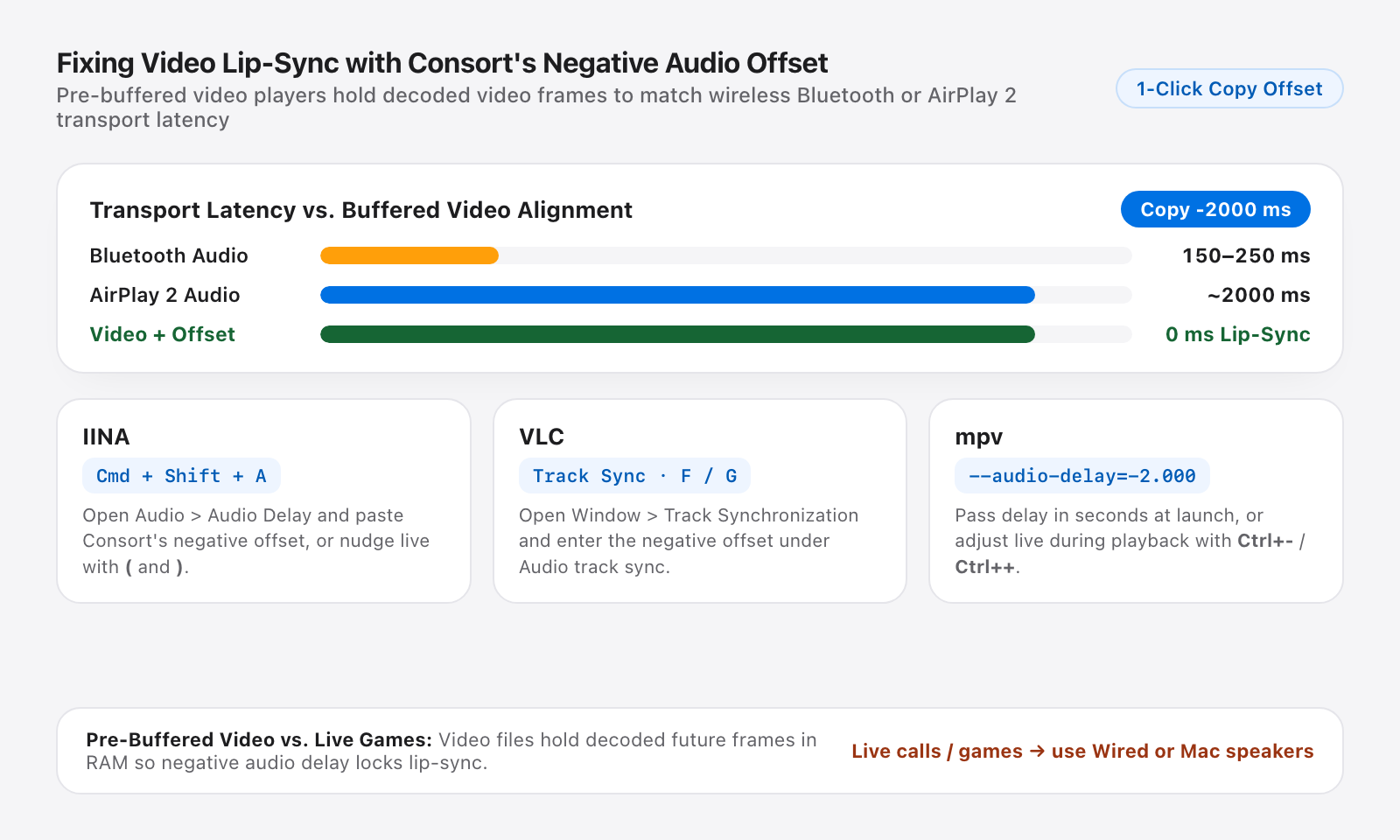
Wireless transports intentionally buffer audio for stability: roughly `150 ms to 250 ms` over **Bluetooth** and around `2000 ms` over **AirPlay 2**.
Because Consort knows the exact buffering and calibrated delay of your active pair, it displays your **end-to-end latency readout** and gives you a **1-click copyable negative offset** (for example, `-214 ms` or `-2000 ms`).
Apply that negative offset directly in buffered macOS video players:
- **IINA**: Press `Cmd+Shift+A` (or open **Audio > Audio Delay**) and enter the negative offset in seconds or milliseconds, or nudge live with `(` and `)`.
- **VLC**: Open **Window > Track Synchronization** and enter the negative value under **Audio track synchronization**, or press `F` / `G` during playback.
- **mpv**: Launch with `--audio-delay=-2.000` (in seconds) or adjust live with `Ctrl+-` and `Ctrl++`.
Consort calculates your exact wireless buffer delay so you can copy and apply the matching negative offset in IINA, VLC, or mpv in one click.
## Honest Note: Buffered Video vs. Live Games
Negative audio offsets work in **VLC, IINA, and mpv** because video files are pre-buffered: the player already has future video frames decoded in memory and simply holds them to match the wireless audio buffer.
**Real-time video games and live video calls cannot rewind or predict live inputs.** No software on macOS can eliminate the physical AirPlay 2 or Bluetooth transport buffer for live interactive audio. For gaming or FaceTime/Zoom calls, use wired USB-C, 3.5 mm, or built-in Mac speakers.
---
### How to Pair Any Two Bluetooth, AirPlay, or Wired Speakers in Stereo on Mac
URL: https://consortaudio.com/blog/pair-bluetooth-airplay-speakers-stereo-mac
Published: 2026-11-15
Author: Nicolas Gavrilenko
macOS does not let you pair two arbitrary speakers as a true Left and Right stereo stage. AirPlay multi-room sends the same mixed audio to both speakers, and Audio MIDI Setup Multi-Output Devices duplicate stereo instead of splitting channels.
**Consort 1.9.4** removes that restriction on Apple Silicon Macs running macOS 15 Sequoia or macOS 26 Tahoe, with zero virtual drivers.
## Mix Any Two Outputs Freely
Consort splits Left (`L`) and Right (`R`) channels in real time across any combination of hardware:
- **Two AirPlay 2 speakers**: Pair mixed brands such as Sonos, Bang & Olufsen, Bowers & Wilkins, KEF, or Devialet in lossless ALAC.
- **Two Bluetooth speakers**: Connect both speakers in macOS Bluetooth settings and assign one to Left and one to Right.
- **AirPlay + Bluetooth or Wired**: Pair an AirPlay speaker on one side with a Bluetooth speaker, USB-C DAC, or 3.5 mm speaker on the other.
- **Mac + External Speaker**: Use your built-in MacBook or Studio Display speakers as one channel and a wireless speaker as the other.
## Step-by-Step Stereo Setup
1. **Connect your speakers**: Make sure Bluetooth or wired speakers are connected in macOS, and AirPlay 2 speakers are on the same Wi-Fi network.
2. **Select Left and Right**: Open Consort from the menu bar and assign one output to **Left** and the second to **Right**.
3. **Choose your audio source**: Route system-wide audio or isolate specific apps (Spotify, Apple Music, Qobuz, VLC) using Consort's [driverless CoreAudio Process Tap](/blog/coreaudio-process-tap-driverless).
4. **Run 1-Click Mic Sync**: If you are mixing different speaker models or asymmetric distances, click **Run Acoustic Sync** to align arrival times down to the millisecond via your Mac's microphone ([see calibration details](/blog/calibrating-airplay-stereo-delay-pan-law)).
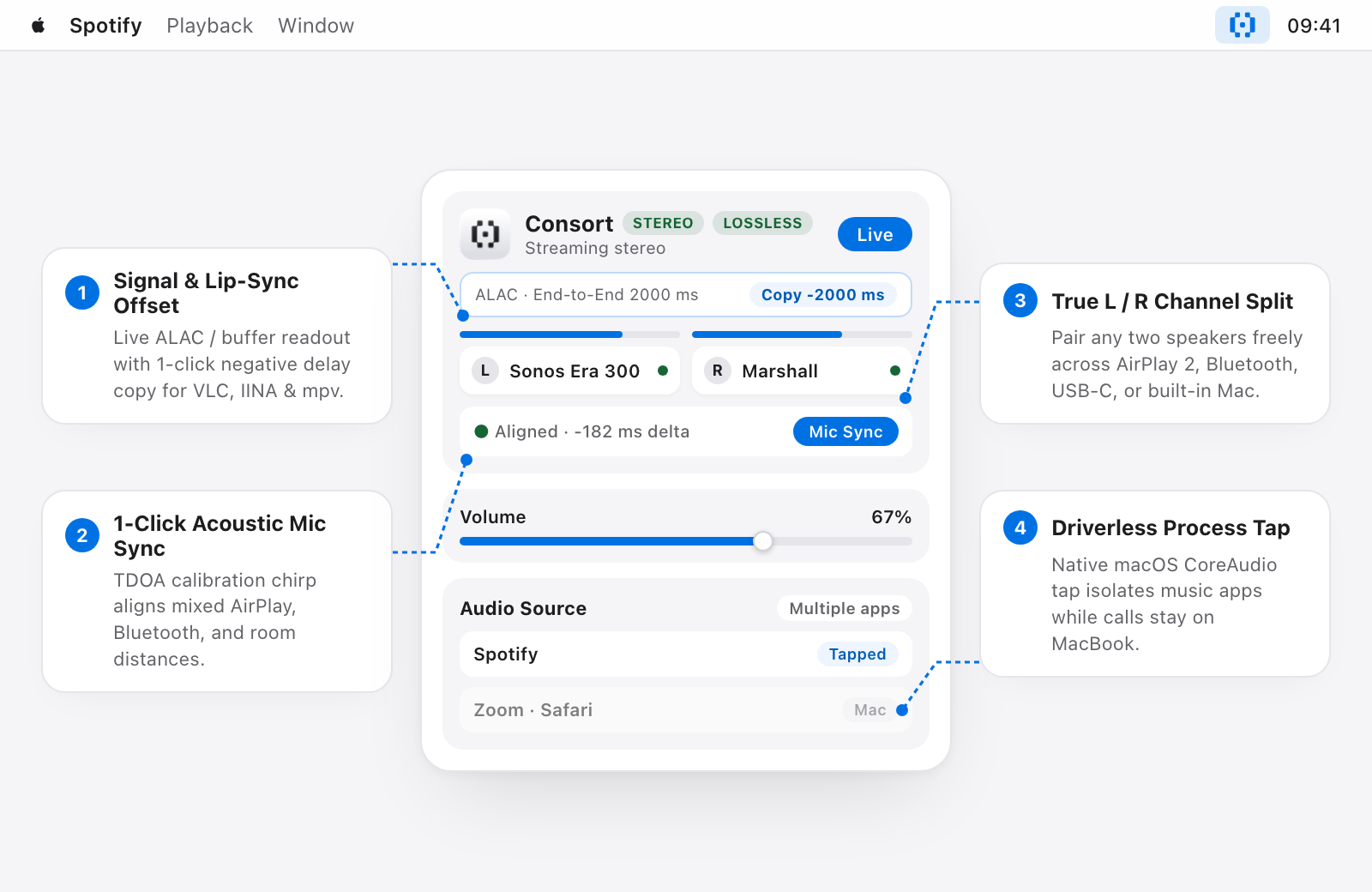
Inside Consort's menu bar popover: assign Left and Right speakers across any transport, run 1-click mic sync, isolate specific apps, and copy live video delay offsets.
## Saved Profiles and Trial
Consort automatically remembers your volume, equal-power `-3.01 dB` balance, and delay calibration for each speaker pair. You can test your exact room and speaker setup with a **7 active-day trial** (only days you use Consort count).
---
### Why macOS Plays Double Mono on Two Speakers (And How to Get True Stereo)
URL: https://consortaudio.com/blog/true-stereo-airplay-macos
Published: 2026-11-12
Author: Nicolas Gavrilenko
When you connect two speakers to a Mac, whether they are **Bang & Olufsen**, **Sonos**, **Bowers & Wilkins**, **Devialet**, **KEF**, or a pair of Bluetooth speakers, you expect a true Left and Right stereo stage.
Instead, checking two speakers in macOS Control Center or building a Multi-Output Device in Audio MIDI Setup produces **flat double mono**.
## Why macOS Collapses to Double Mono
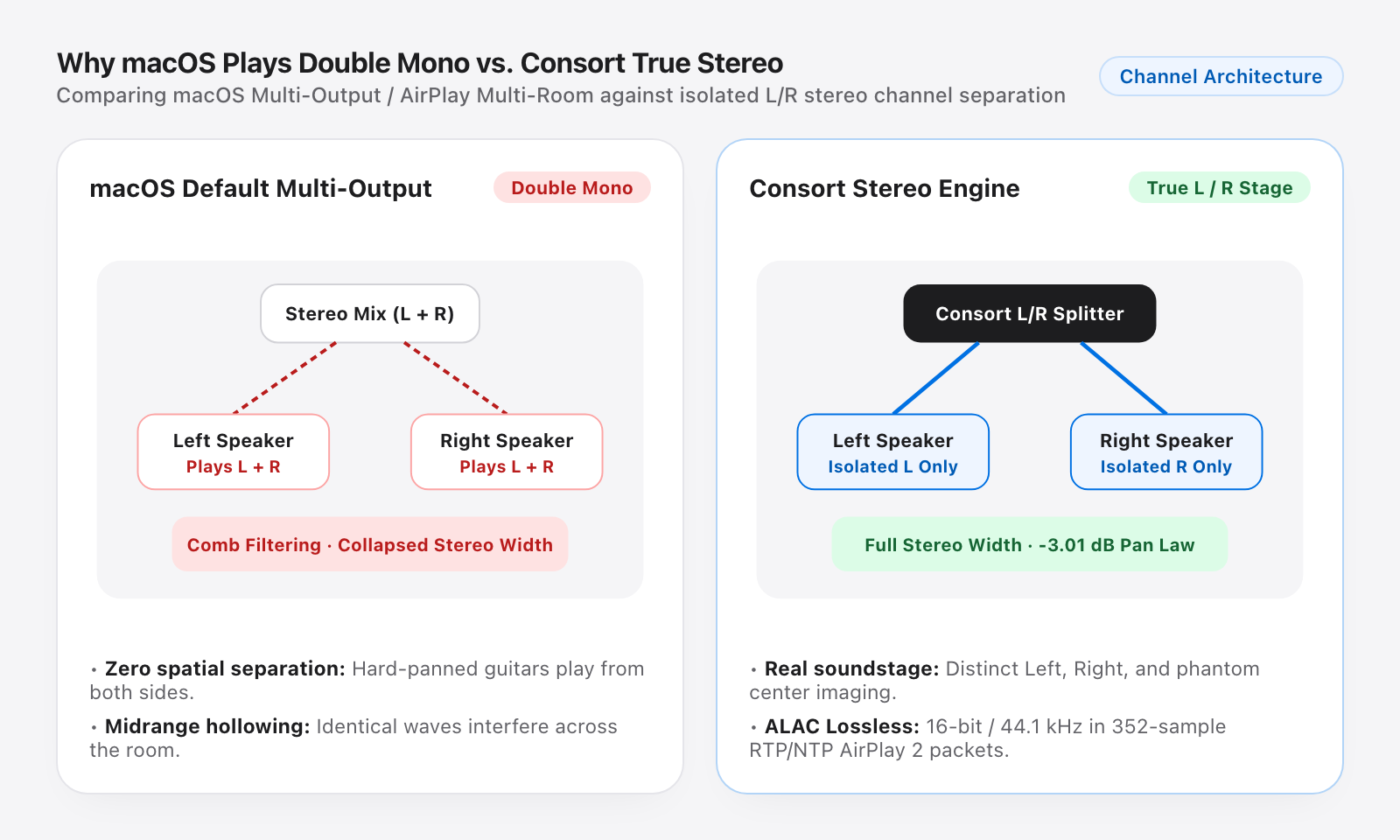
Outside of paired Apple HomePods, macOS treats every selected AirPlay or Multi-Output target as an **independent zone**. Rather than sending the Left (`L`) channel to the left speaker and the Right (`R`) channel to the right speaker, macOS duplicates the same full stereo mix to both speakers.
That causes two immediate acoustic problems:
- **Zero spatial width**: Instruments panned hard left or hard right appear in both speakers at once.
- **Comb filtering**: Two spaced speakers playing identical signals interfere across the room, hollowing out midrange clarity.
macOS Multi-Output duplicates L+R to every speaker, causing comb filtering and collapsed width. Consort isolates Left and Right channels into a true stereo soundstage.
## How Consort Splits True Stereo
**Consort 1.9.4** routes isolated Left and Right channels directly from your Mac menu bar on macOS 15 Sequoia and macOS 26 Tahoe (Apple Silicon):
1. **Driverless CoreAudio Process Tap**: Captures system audio or individual apps (Spotify, Apple Music, Qobuz, VLC) in 32-bit float without installing virtual audio drivers ([how Process Taps work](/blog/coreaudio-process-tap-driverless)).
2. **True L/R Channel Separation**: Sends isolated Left audio to your Left speaker and Right audio to your Right speaker, using an equal-power `-3.01 dB` pan law.
3. **Universal Hardware Support**: Pair any two speakers freely across **AirPlay 2** (`ALAC 16-bit / 44.1 kHz` in `352-sample` RTP/NTP-synced packets), **Bluetooth**, **USB-C / 3.5 mm wired**, and **built-in Mac speakers** ([full setup guide](/blog/pair-bluetooth-airplay-speakers-stereo-mac)).
4. **1-Click Acoustic Mic Sync**: Measures room and hardware arrival times using your Mac's microphone so mixed speakers lock into phase ([learn about TDOA calibration](/blog/calibrating-airplay-stereo-delay-pan-law)).
Download Consort to test your setup with a **7 active-day trial** (only days you use the app count).
---
### CoreAudio Process Tap on macOS: Per-App Audio Routing Without Virtual Drivers
URL: https://consortaudio.com/blog/coreaudio-process-tap-driverless
Published: 2026-11-11
Author: Nicolas Gavrilenko
For years, routing audio from a single Mac app required installing third-party kernel extensions (`kext`) or virtual audio drivers such as Soundflower or BlackHole.
Those drivers introduced recurring friction:
- They replaced your default macOS output device, often breaking keyboard volume keys.
- A stalled audio daemon or macOS update could interrupt microphones and system audio during calls.
- Background virtual audio graphs stayed active, draining battery on Apple Silicon.
## Native `AudioHardwareCreateProcessTap`
With macOS 15 Sequoia and macOS 26 Tahoe, Apple introduced a native CoreAudio API: **Process Taps** (`CATapDescription`).
**Consort 1.9.4** builds directly on this framework across AirPlay, Bluetooth, wired USB-C/jack, and built-in Mac speakers:
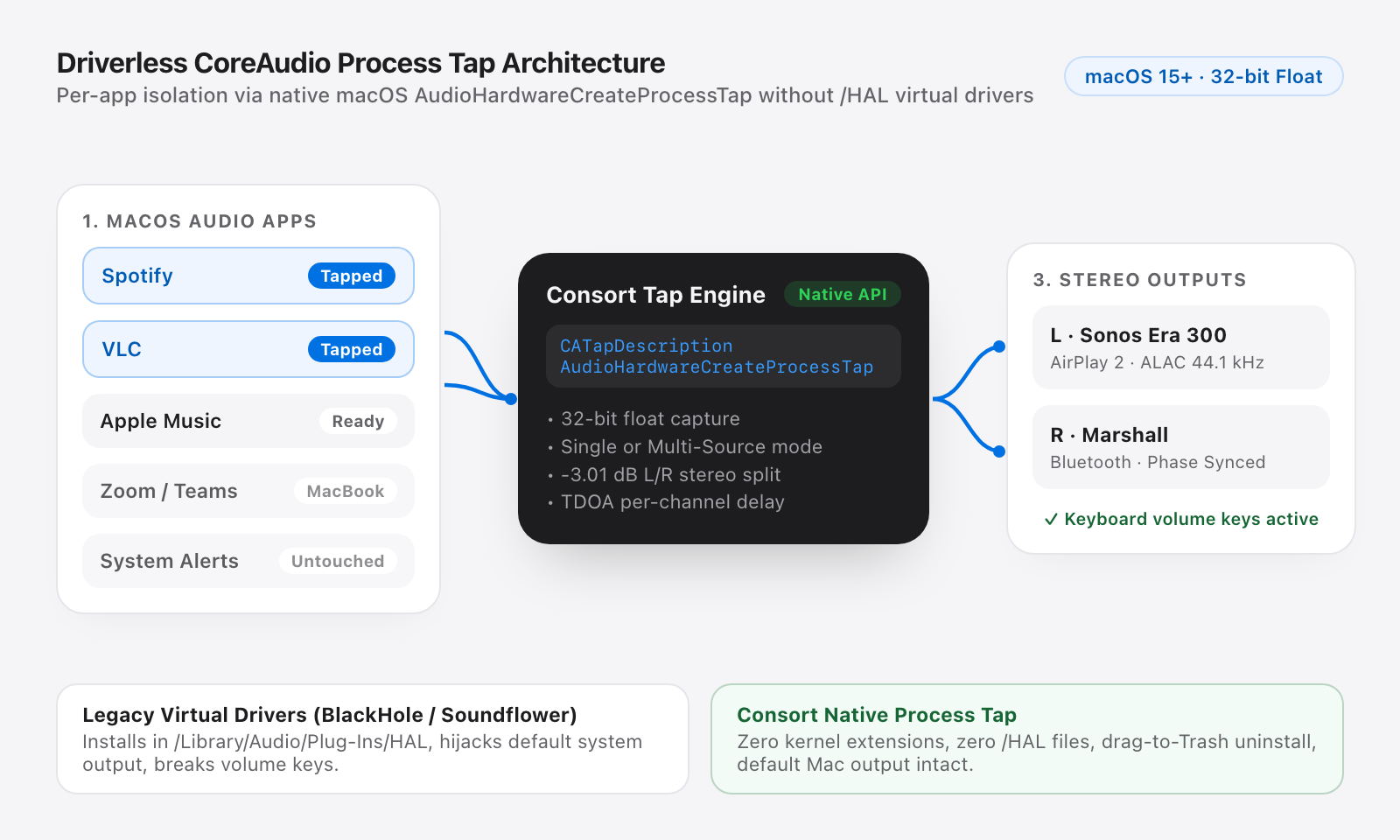
- **Surgical Per-App Isolation**: Stream only **Spotify**, **Apple Music**, or **VLC** to your stereo pair while Safari, system alerts, and Teams or Zoom calls stay on your MacBook speakers or headphones.
- **Single-Source or Multi-Source Modes**: Toggle multiple apps simultaneously, or switch to **Single Audio Source** mode to jump between players in one click.
- **Zero Virtual Drivers**: Nothing is ever installed in `/Library/Audio/Plug-Ins/HAL`. Your macOS audio stack stays untouched, and uninstalling Consort is just dragging it to the Trash.
Native CoreAudio Process Tap routing isolates chosen apps in 32-bit float without /Library/Audio/Plug-Ins/HAL virtual drivers or kernel extensions.
Ready to pair your speakers? Follow our [step-by-step stereo setup guide](/blog/pair-bluetooth-airplay-speakers-stereo-mac) or see [how Consort splits true Left and Right channels](/blog/true-stereo-airplay-macos).
---
### Calibrating Stereo Speakers on Mac: Pan Law (-3 dB) and Acoustic Mic Sync
URL: https://consortaudio.com/blog/calibrating-airplay-stereo-delay-pan-law
Published: 2026-11-10
Author: Nicolas Gavrilenko
In a living room or desk setup, you rarely sit at the exact midpoint between two speakers. Even more common, you may pair two different speaker models, such as a **MacBook Pro** speaker on one side and an **AirPlay** or **Bluetooth** speaker on the other.
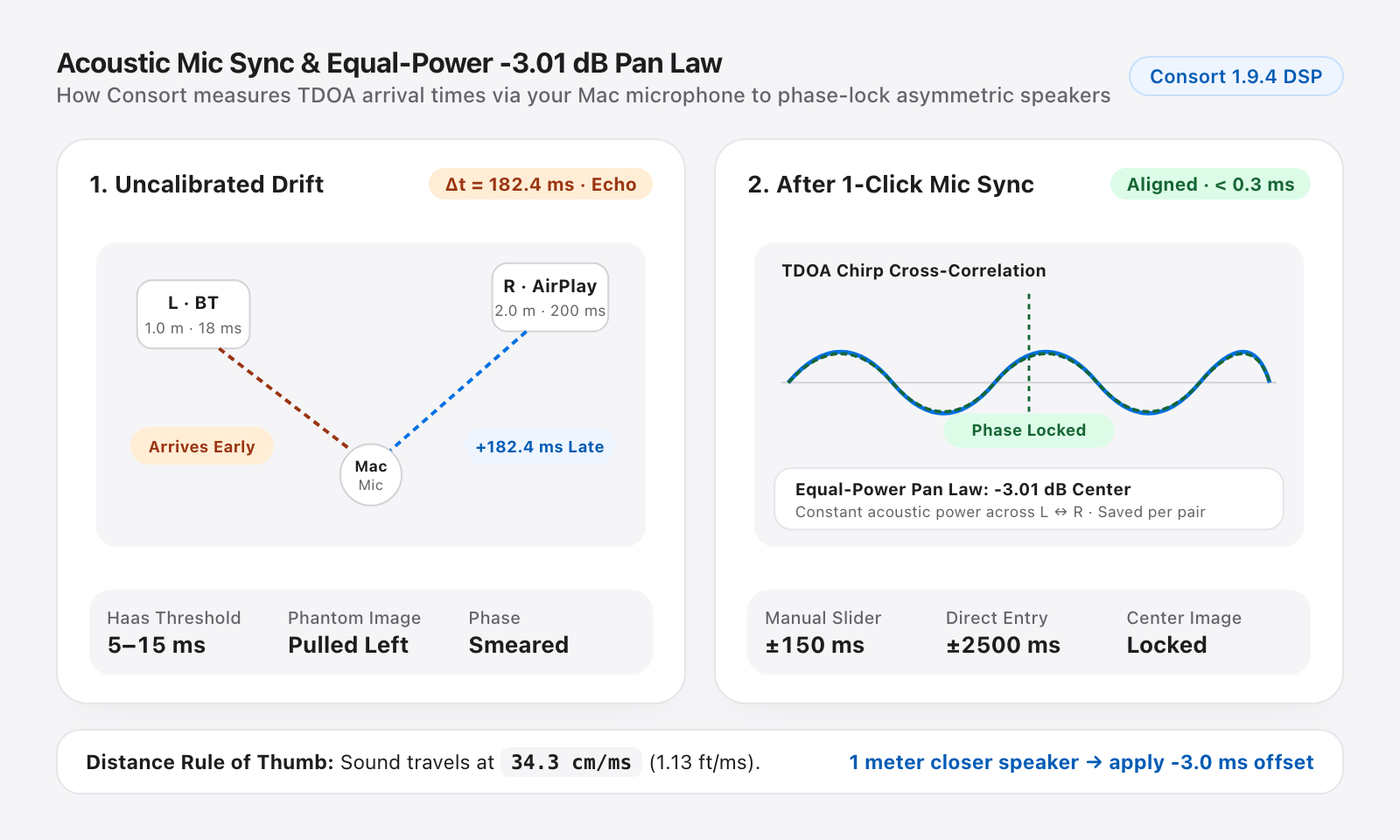
Human hearing detects arrival-time differences as small as `5 to 15 milliseconds` (the **Haas precedence effect**). Even a slight offset pulls lead vocals and the phantom center toward the earlier speaker.
## 1-Click Acoustic Sync Calibration
In Consort 1.9.4, **Acoustic Mic Sync** aligns mixed hardware and room distances automatically:
- **TDOA Chirp Measurement**: Click **Run Acoustic Sync** and Consort plays a brief calibration chirp on each speaker, capturing arrival times through your Mac's built-in microphone.
- **Sub-Millisecond Alignment**: Consort calculates the exact hardware buffer and air-travel delta, whether you are mixing AirPlay 2, Bluetooth, USB-C DACs, or built-in Mac speakers.
- **Per-Pair Saved Profiles**: Volume, equal-power `-3.01 dB` balance, and delay offsets are saved per speaker pair and restored automatically next time you connect.
1-click TDOA chirp alignment measures real arrival times via your Mac microphone to phase-lock asymmetric speakers and preserve a constant-power -3.01 dB center image.
## Manual Millisecond Tuning
When you want fine manual control, open **Speakers & Sync** in Consort:
- **Precision Slider (`-150 ms` to `+150 ms`)**: Nudge Left or Right delay live without clicks or dropouts.
- **Direct Numeric Entry (`±2500 ms`)**: Type an exact millisecond offset for speakers with deep internal DSP buffers or wireless latency gaps.
## Distance Rule of Thumb
Sound travels through air at roughly `34.3 cm (1.13 ft) per millisecond`. If your Left speaker sits **1 meter closer** to your listening position than your Right speaker, applying **`-3 ms`** centers the stereo image again.
Watching movies on wireless speakers? Read our guide on [fixing wireless speaker delay and video lip-sync on macOS](/blog/fix-wireless-speaker-delay-video-lip-sync-macos).
## Release History
### Consort v1.9.5: Consort 1.9.5 · Menu Bar Anchoring & Calibrated Slider Feel
URL: https://consortaudio.com/changelog/v1-9-5
Released: 2026-11-16
Minimum macOS: macOS 15.0+ (Apple Silicon)
Fixes first-launch popover placement on clean macOS installs and calibrates slider velocity smoothing for consistent response across 60 Hz and 120 Hz ProMotion displays.
### What’s New
- **Menu Bar Popover Anchoring**: Defers first-launch popover presentation until macOS finishes assigning the menu bar button’s top-screen frame, ensuring the popover always opens cleanly beneath the Consort icon.
- **Equal 60 Hz & 120 Hz Slider Smoothing**: Recalibrates the continuous-time spring physics (`CADisplayLink`) and offscreen window fallback so Volume, Balance, and Manual Delay sliders carry the same subtle velocity smoothing and responsiveness on 60 Hz Macs and 120 Hz ProMotion displays.
---
### Consort v1.9.4: Consort 1.9.4 · Universal Stereo, Acoustic Sync & Liquid Glass Icons
URL: https://consortaudio.com/changelog/v1-9-4
Released: 2026-11-15
Minimum macOS: macOS 15.0+ (Apple Silicon)
Supports any combination of AirPlay, Bluetooth, USB-C, and Mac speakers, with 1-click TDOA acoustic mic sync, video lip-sync offset readout, Liquid Glass icons, and Sparkle 2 updates.
### What’s New
- **Universal AirPlay, Bluetooth & Wired Pairing**: Pair any two speakers natively on Apple Silicon, mixing AirPlay 2 (ALAC), Bluetooth, USB-C DACs, and built-in Mac audio freely.
- **1-Click Acoustic Sync Calibration**: Automated TDOA chirp measurement via your Mac’s microphone aligns speaker arrival times down to the millisecond across mixed hardware, plus 1-click negative video offset copy for VLC, IINA, and mpv.
- **Liquid Glass Icon & Metal Reflection Signature**: Custom Default, Dark, Clear, and Tinted Liquid Glass app icons on macOS 26 Tahoe alongside an interactive Metal acoustic reflection sequence.
- **Per-Pair Saved Profiles & Native AppKit Controls**: Remembers volume, equal-power balance, and delay per speaker pair, with standard macOS keyboard editing shortcuts and Sparkle 2 playback-safe automatic updates.
---
### Consort v1.6.0: Consort 1.6 · Liquid Glass UI, Inter-Speaker Delay & Automatic Wake-Resume
URL: https://consortaudio.com/changelog/v1-6-0
Released: 2026-11-12
Minimum macOS: macOS 15.0+
macOS-native Liquid Glass interface, millisecond delay alignment, single audio source mode, and automatic resume after sleep or restart.
### Highlights
- **Inter-Speaker Delay Calibration (`±ms`)**: Dedicated precision slider (`-150 ms` to `+150 ms`) plus manual millisecond entry for aligning mismatched speakers or asymmetric rooms.
- **Single Audio Source Mode (Radio vs Toggle)**: Switch effortlessly between multi-app routing and single-source exclusive switching.
- **Automatic Resume After Sleep or Restart**: Re-locks the shared RTP/NTP master clock and wakes your speaker pair automatically as soon as playback resumes in your chosen music app.
- **Permissions & Built-In Diagnostics**: Live status tracking for macOS Audio Capture, Local Network, Accessibility, Notifications, and Launch at Login, with one-click System Settings links.
- **Native Liquid Glass Design System**: Continuous geometry, neutral translucent materials, and silky spring interactions.
---
### Consort v1.4.0: Consort 1.4 · Hardware F8-F12 Media Keys (64-Step OSD), Hybrid Mac Mode & Shortcuts
URL: https://consortaudio.com/changelog/v1-4-0
Released: 2026-11-09
Minimum macOS: macOS 15.0+
Native macOS keyboard volume control with 64-step OSD, hybrid Built-in Mac + AirPlay stereo pairing, AirPods auto-pause, and consort:// URL scheme.
### New Features & Enhancements
- **F8 / F10 / F11 / F12 Media Keys & 64-Step OSD**: Control playback toggle (`F8`), mute (`F10`), and volume (`F11` / `F12`) with customizable modifier keys (`⌘`, `⌥`, `⌃`) and quarter-step precision (`+ ⇧`) matching native macOS HUD styling.
- **Hybrid Built-In Mac + AirPlay Output**: Assign your Mac’s internal speakers as Left or Right channel alongside any AirPlay speaker.
- **Auto-Pause on Headphones / AirPods & Idle Standby**: Pauses speaker streaming immediately when headphones connect and enters low-power standby after configurable silence timeouts.
- **Apple Shortcuts, Raycast & CLI Integration (`consort://`)**: Trigger streaming, switch audio sources, and control volume or balance from automation scripts.
- **Apple Silicon Efficiency**: Under `0.1%` CPU usage when idle in the menu bar.
---
### Consort v1.0.0: Consort 1.0 · AirPlay Stereo RAOP Engine & CoreAudio Process Tap
URL: https://consortaudio.com/changelog/v1-0-0
Released: 2026-11-05
Minimum macOS: macOS 15.0+
Initial macOS release: bit-perfect Left/Right stereo separation in lossless ALAC, mDNS discovery, and driverless per-app routing.
### Core Foundations
- **Bit-Perfect Left / Right Stereo Separation**: Real-time `ALAC 16-bit / 44.1 kHz` encoding with constant-power `-3.01 dB` pan law and transparent soft-knee limiter.
- **Native CoreAudio Process Tap Capture**: Isolate individual apps (Spotify, Safari, Arc, Apple Music, Tidal…) or capture system-wide audio without virtual audio drivers (`kext` or HAL plugins).
- **Network Resilience & Automatic Single-Speaker Handling**: Seamless `-3 dB` mono fold-down when only one speaker is online and automatic stereo recovery when both speakers reconnect.